How to “Disable” GitHub Copilot Harness Agents in Copilot Studio
Copilot Studio governance
How to “Disable” GitHub Copilot Harness Agents in Copilot Studio
One policy is not enough. Copilot Credits contain consumption. A Dataverse plug-in can reject the final save into the environment - but it cannot stop earlier harness authoring and testing. Together, both layers form a practical control.
The GitHub Copilot harness introduces a different way to build and run agents in Copilot Studio. A user describes a goal in natural language, while the harness manages planning, tools, knowledge, memory, and the subsequent steps. For administrators, that creates a practical question: how do you prevent users from creating agents without oversight in a particular Power Platform environment and consuming Copilot Credits?
The answer is not a single switch. The documented capacity controls in the Power Platform admin center limit consumption. They do not prevent a user from starting to build an agent. If the policy must reject the final save into the environment, you need a second layer - for example, a synchronous Dataverse plug-in on the bot table. This boundary matters: the harness can already consume credits before that save is attempted.
Limiting credits and preventing creation are not two routes to the same outcome. They solve two different problems.
Separate consumption from creation first
Agents powered by the GitHub Copilot harness consume Copilot Credits not only during production use, but also while they are being built, tested, and evaluated. That consumption is not included with a Microsoft 365 Copilot user license. Administrators therefore need to control both the financial impact and the environments and users that are allowed to create these agents.
| Control | What it can do | What it cannot do | Scope |
|---|---|---|---|
| Copilot Credits in PPAC | Limit available capacity, prevent the use of the tenant pool, and stop a specific agent after it reaches its limit. | It is not a block on the Create action or a harness-specific permission. | Environment or an existing agent. |
| Dataverse plug-in | Stop a synchronous Create operation on the bot table before the row is written. | It cannot stop work or tests performed in the GitHub Copilot harness before the save attempt. Those activities can already consume credits. | The final save of a new agent into a specific environment. |
Layer 1: limit Copilot Credits for the environment
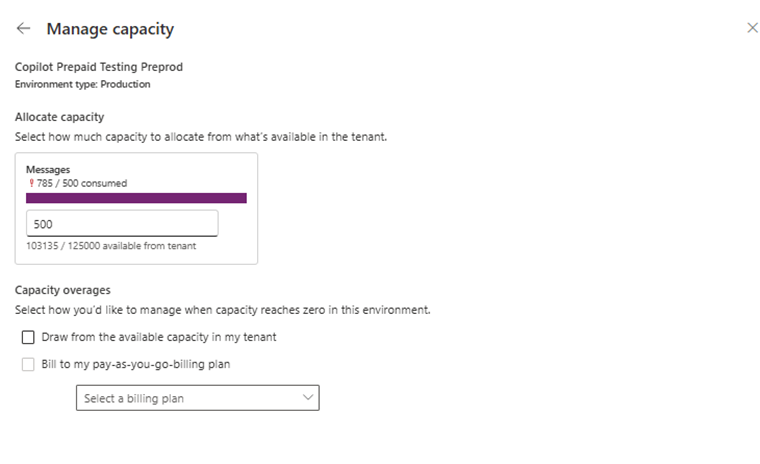
The native route starts at Power Platform admin center → Licensing → Products → Copilot Studio. On the Summary page, select Manage Copilot Credits. You need the Power Platform Administrator or Global Administrator role, or equivalent permissions.
- Select the environment and assign a deliberately limited amount of prepaid Copilot Credits.
- Under Capacity overages, clear Draw from the available capacity in my tenant. Otherwise, the environment can continue using unallocated tenant capacity after its own allocation is exhausted.
- Check whether the environment is linked to a pay-as-you-go billing plan. If it is, consumption can continue through the Azure subscription after prepaid credits run out.
- Save the setting and monitor the environment on the Environments tab.
This setting is not specific to the GitHub Copilot harness.
It affects Copilot Studio workloads that consume credits in the environment. An overly aggressive limit can therefore affect other agents and their users.
Use a hard stop for an agent that already exists
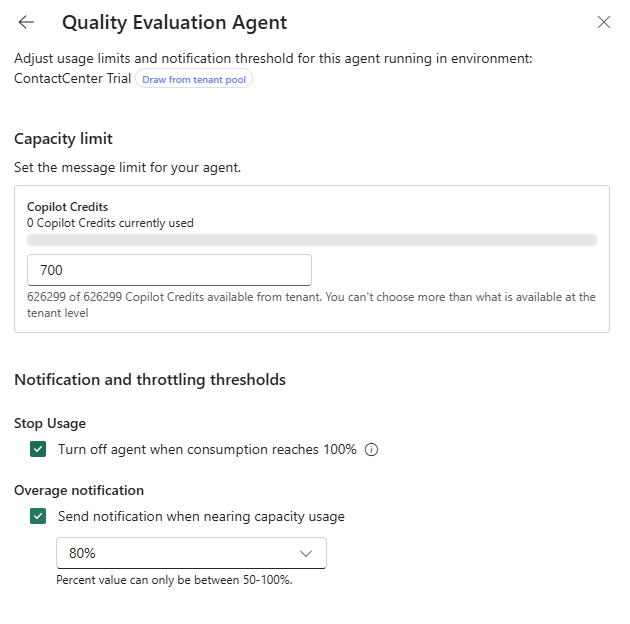
If you need more granular control, open Manage Agents from the same page, select the agent, and choose Set limit. Configure a monthly Copilot Credit limit, a notification threshold, and enable Stop usage. The agent is turned off when consumption reaches 100%.
For inventory, open Power Platform admin center → Manage → Copilot Studio and filter the Harness column by GitHub Copilot. This is currently the appropriate place to review what has already been created across the tenant.
A capacity policy is therefore a strong cost and operational control. It is not creation prevention. An agent-level limit can also be configured only after the agent exists.
Layer 2: block creation through Dataverse
Copilot Studio stores agents as rows in the Dataverse bot table. Creation from the maker portal, an API, or the GitHub Copilot harness ultimately results in a Create operation on that table. A synchronous plug-in registered in the PreValidation stage can therefore reject the request before the row is written to the database.
The plug-in blocks the save - not the preceding GitHub Copilot harness session.
A user can still start creating and testing an agent in the harness. The plug-in is not invoked until the harness attempts to persist the agent as a Dataverse bot row. Because building and testing already consume Copilot Credits, those credits can be charged even though the final save is rejected. A Dataverse plug-in cannot prevent that earlier consumption; only the environment's capacity and billing controls can contain it.
A working foundation is available in DefaultAgentBlock
The source code, policy variants, build and registration instructions, and ALM notes are available in my repository: github.com/lukoplt/DefaultAgentBlock.
Three variants in the repository - and one critical difference
The DefaultAgentBlock.cs file contains three implementations. Only the first one is active. The other two are commented reference variants.
| Variant | Repository state | Result |
|---|---|---|
| DefaultAgentBlock | Active | Blocks the creation of every Copilot Studio agent; members of the allowed team are exempt. |
| BlockCopilotHarnessAgents | Commented out | Blocks GitHub Copilot harness agents only; no exception. |
| BlockCopilotHarnessAgents + team exception | Commented out | Blocks GitHub Copilot harness agents only; members of the configured team are exempt. |
Do not deploy the active class expecting a harness-only policy.
The active DefaultAgentBlock does not distinguish between harnesses. It is suitable, for example, for a default environment where you want to stop all ad-hoc agent creation outside a managed group.
How the harness-only variant identifies the GitHub Copilot harness
The variant reads JSON from the Dataverse configuration column and compares recognizer.$kind with the exact string CLICopilotRecognizer. Under the current format, a match identifies an agent created through the GitHub Copilot harness experience.
private const string HarnessRecognizerKind =
    "CLICopilotRecognizer";

recognizer.TryGetProperty("$kind", out JsonElement kind)
&& string.Equals(
    kind.GetString(),
    HarnessRecognizerKind,
    StringComparison.Ordinal
);
This is a purpose-built technical detector, not a documented public Microsoft contract. If the configuration structure or recognizer name changes, the harness-only variant might stop identifying the new format. A simple regression test should therefore be part of the operational controls after platform updates.
The current harness-only implementation also allows the request when configuration is missing or contains invalid JSON. In other words, classification is fail open. This protects other agent types from false positives, but it also means that a format change could bypass the policy. The active broad-block variant is safer for highly restrictive environments.
Why use PreValidation and synchronous execution?
Registration in the PreValidation stage rejects the operation before the database transaction opens. The user receives the error immediately, and no partial row is created. An asynchronous step would not be appropriate for creation prevention because it would run only after the operation that must be stopped.
| Plug-in Registration Tool field | Value |
|---|---|
| Message | Create |
| Primary Entity | bot |
| Event Pipeline Stage | PreValidation - recommended; alternatively PreOperation |
| Execution Mode | Synchronous |
| Isolation / Location | Sandbox / Database |
| Unsecure Configuration | The GUID of the allowed Dataverse team or supported group, depending on the selected variant |
How the exception for a selected group works
The exception is not a list of users hard-coded into the assembly. The team GUID is entered in the step's Unsecure Configuration. Running under the system account, the plug-in checks the calling identity's membership in the teammembership table. A team member proceeds; everyone else receives an InvalidPluginExecutionException.
new ConditionExpression(
    "systemuserid",
    ConditionOperator.In,
    context.InitiatingUserId,
    context.UserId
)
The active broad-block variant accepts either a Dataverse teamid or the Entra ID object ID of the group behind a group team. It checks both InitiatingUserId and UserId, so it also accounts for impersonation. Queries run through CreateOrganizationService(null) under the SYSTEM account and do not depend on whether the maker can read the team and teammembership tables.
The commented harness-only variant with an exception is narrower: it expects the Dataverse teamid directly and checks only InitiatingUserId. To use it with an Entra security group, create the corresponding Dataverse group team in the environment and place its Dataverse teamid in the configuration.
Group-team membership is materialized in Dataverse when the user first accesses the environment.
Before production deployment, verify that the expected members actually appear in the team. Otherwise, a legitimate user can be blocked.
Fail closed where it matters
The active variant also blocks creation when the configuration GUID is invalid or when the corresponding team does not exist in the environment. That is the correct behavior for a restrictive policy: a configuration mistake must not silently grant access to everyone.
The same behavior is important for ALM. Team GUIDs differ between environments. When importing a managed solution, parameterize the configuration with an environment variable or override it through deployment settings. Otherwise, the plug-in will not find the team after import and will block all agent creation.
Recommended model: two layers and a clear purpose for each environment
A practical governance baseline
- Deploy the broad-block variant in the default environment and other unmanaged environments, with an exception for a managed Entra group only.
- If you need to block the GitHub Copilot harness only, activate the appropriate harness-only variant and add a regression test for its detector.
- Set an explicit Copilot Credit allocation for every environment and turn off tenant-pool consumption.
- If the allocation must be a firm financial ceiling, do not attach a pay-as-you-go plan.
- Configure an individual monthly limit, notification, and Stop usage for approved production agents.
- Review the inventory regularly with the Harness = GitHub Copilot filter.
This model separates experimentation from production. Users can evaluate new capabilities safely in a managed sandbox, while the default environment rejects the final persistence of ad-hoc agents and production environments have an owner, limits, and operational accountability. The capacity layer is still required because an unsuccessful save does not undo credits consumed during the preceding harness build and test session.
What these controls do not solve
- Pre-save authoring and testing: the plug-in does not see activity inside the GitHub Copilot harness before the Dataverse save attempt, even though that activity can already consume Copilot Credits.
- Existing agents: a plug-in on
Createdoes not delete or disable anything that already exists. - Runtime consumption: the plug-in blocks the final save; capacity and the agent-level hard stop control credit consumption.
- Changes to the internal format: the harness-only detector depends on the current
CLICopilotRecognizervalue. - Automated deployments: import identities or service principals can be blocked by the broad policy unless the exception design accounts for them.
- Supportability: this is a custom Dataverse extension on a system table, not a native harness-policy switch. Test it after significant Copilot Studio changes.
Rollback is straightforward: disabling the SDK message processing step lifts the block immediately without uninstalling the assembly. In production, pair that with a documented emergency procedure and Plug-in trace logging for diagnostics.
Good governance is not a ban on AI. It is a clear decision about who may create a new operational commitment - and how much it may cost.
Sources
- DefaultAgentBlock - Lukáš Oplt / GitHub
- DefaultAgentBlock.cs - implementation of all three variants
- GitHub Copilot harness in Copilot Studio - Microsoft Learn
- Choose an agent harness - Microsoft Learn
- Manage costs for agents powered by the GitHub Copilot harness - Microsoft Learn
- Manage Copilot Credits capacity - Microsoft Learn


Comments
Post a Comment